












test

0
-
-
-
Categories
-
-
-
-
-
-
-
-
-
-
-
-
-
-
-
-
-
-
- Akumulatory do bandownic
- Akumulatory do drukarek
- Akumulatory do foteli
- Akumulatory do stroboskopów
- Batteries for roller shutters
- Camera batteries
- Control device
- Diagnostic devices
- Flashlight batteries
- Gas nailers
- Geodetic devices
- Maszynki do strzyżenia
- Medical equipment
- Mop Batteries
- Mower batteries
- Thermal imaging cameras
- Welding accessories
-
-
-
-
-
-
-
-
-
Bicycles
- A2B
- Acecycles
- AEG
- Ansmann
- BionX
- BMZ
- Bulls
- Chilwee
- Clean Air
- Cleantron
- Derby
- Di Blasi
- Easy Motion
- Ecobike
- Fischer
- Gazelle
- Giant
- Grace
- Guru
- Heinzmann
- Hercules
- Kalkhoff
- Karcher
- Leaos
- Maratron
- Mate
- Matrabike
- MiFa
- NCM
- Panterra
- Phylion
- Prophete
- Protanium
- Qwic
- Sachs
- Samsung
- Sparta
- Stromer
- Suntour
- Sushi
- Telefunken
- Tianneng
- TranzX
- Triride
- Urban Mover
- Xiaomi
- Xion
- Yamaha
- Forklifts
- scooters
- Segway
- Skateboards
-
Bicycles
-
-
-
-
-
-
-
-
-
-
-
-
-
-
-
-
Kategorie
-
-
-
Featured
-
-
-
-
-
-
-
-
-
Kategorie
-
-
-
Featured
-
-
-
-
-
-
Latest posts
-
-
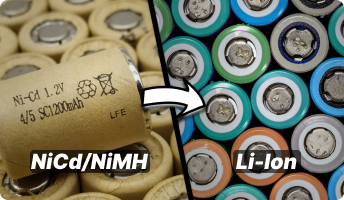 Dlaczego nie warto przerabiać akumulatorów NiCd/NiMH na Li-ion?
Artykuł wyjaśnia, dlaczego przerabianie akumulatorów NiCd i NiMh na Li-ion w elektronarzędziach często nie ma sensu...
-
 MEMORY EFFECT – TRUTH OR FICTION?
The so-called battery memory effect, often referred to as “cycle memory”, was traditionally described as a phenomenon...
-
 WHAT TO DO WHEN YOUR LAPTOP BATTERY REFUSES TO CHARGE
Wielu użytkowników laptopów spotyka się z sytuacją, w której bateria przestaje się ładować, system nie pokazuje jej...
-
 BATTERY CAPACITY LOSS – WHY DOES MY BATTERY LAST ONLY 10 MINUTES?
Does your laptop battery last barely 10 minutes? Does moving the laptop from one room to another require you to...
-
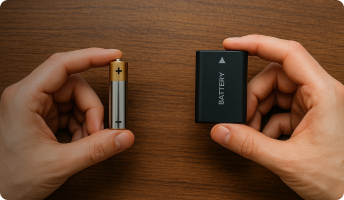 WHAT IS THE DIFFERENCE BETWEEN A BATTERY AND A RECHARGEABLE ACCUMULATOR?
Batteries and rechargeable accumulators are an essential part of modern life. Każdego dnia używamy urządzeń...
-
 HOW TO REGENERATE A LAPTOP BATTERY – PART I
Regenerating a laptop battery is far more complex than it may initially seem. It requires precision, technical...
-
 HOW TO REGENERATE A LAPTOP BATTERY – PART II
Regenerating a laptop battery may sound simple, but in practice it requires precision, technical awareness and a...
-
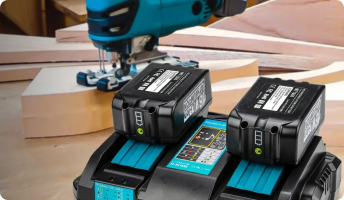 BATTERY CHARGERS
Choosing the right battery chargers increases the performance and lifespan of a battery. Selecting an unsuitable...
-
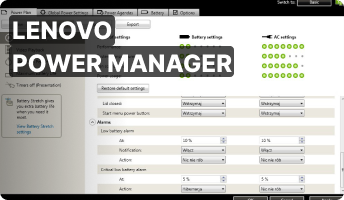 LENOVO POWER MANAGER
Program komputerowy firmy Lenovo o nazwie Power Manager jest świetnym programem do zarządzania energią w laptopach....
Blog categories
Search in blog
Archived posts
RESETTING THE SMC CONTROLLER
On Apple laptops, issues with the SMC (System Management Controller) can sometimes cause irregular system behavior. Before assuming the controller is at fault, it’s best to perform a quick preliminary check:
- Close any applications that are not responding
- Put the Mac to sleep and wake it up again
- Shut the computer down normally
- Restart it
If the problem lies with the SMC, you may notice symptoms such as:
- fans running constantly at full speed,
- keyboard backlight turning on unexpectedly,
- display brightness that stops reacting to ambient light,
- incorrect battery level readings,
- unexpected shutdowns or sleep mode activation,
- incorrect response to opening or closing the lid,
- malfunctioning LED indicators,
- high CPU usage despite no active tasks
You may also experience application-related issues, such as:
- icons bouncing endlessly in the Dock
- apps quitting on their own
- incorrect behavior in display or graphics modes
If these symptoms appear, an SMC reset may resolve the issue.
The reset procedure varies depending on whether your MacBook has a removable battery. For older models with a removable battery:
- Shut the computer down
- Disconnect the power adapter and remove the battery
- Press and hold the power button for 5 seconds, then release
- Reinstall the battery and reconnect the power adapter
- Turn the Mac back on
If your MacBook does not have a removable battery, follow this method after shutting it down:
- Connect the appropriate power adapter
- Press and hold Shift + Control + Option together with the power button

Some models — including Mac Pro, iMac, and Mac mini — require a different reset method. In their case:
- Turn the computer off completely
- Unplug it from power for 15 seconds
- Reconnect the power cable
- Press the power button to start the system
Posted in:
Problemy z ładowaniem baterii
Related posts
-
 BATTERY LIFESPAN IN A LAPTOP
If you have ever wondered how to extend the lifespan of your laptop battery, this article will guide you through the...Read More
BATTERY LIFESPAN IN A LAPTOP
If you have ever wondered how to extend the lifespan of your laptop battery, this article will guide you through the...Read More -
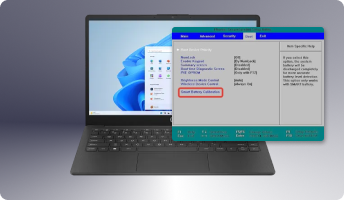 BATTERY CALIBRATION IN A LAPTOP
Laptop battery calibration – learn how this simple process can restore correct battery readings on your device.Read More
BATTERY CALIBRATION IN A LAPTOP
Laptop battery calibration – learn how this simple process can restore correct battery readings on your device.Read More -
 PROBLEM WITH CHARGING A DELL BATTERY
Do you own a Dell laptop and your battery refuses to charge? Does the system show “plugged in, not charging”? Read...Read More
PROBLEM WITH CHARGING A DELL BATTERY
Do you own a Dell laptop and your battery refuses to charge? Does the system show “plugged in, not charging”? Read...Read More -
LENOVO POWER MANAGER
Program komputerowy firmy Lenovo o nazwie Power Manager jest świetnym programem do zarządzania energią w laptopach....Read More
-
HOW TO REGENERATE A LAPTOP BATTERY – PART II
Regenerating a laptop battery may sound simple, but in practice it requires precision, technical awareness and a...Read More
Leave a comment